Read first: Chrome & Blood requires the Phantom Liberty DLC and an official copy of Cyberpunk 2077, updated to the latest version on Steam. An SSD is required — do not try to run this on an HDD. Only Windows 10/11 is supported.
System Requirements
Based on internal testing and community feedback. Your mileage will vary depending on hardware, background programs, and drivers.
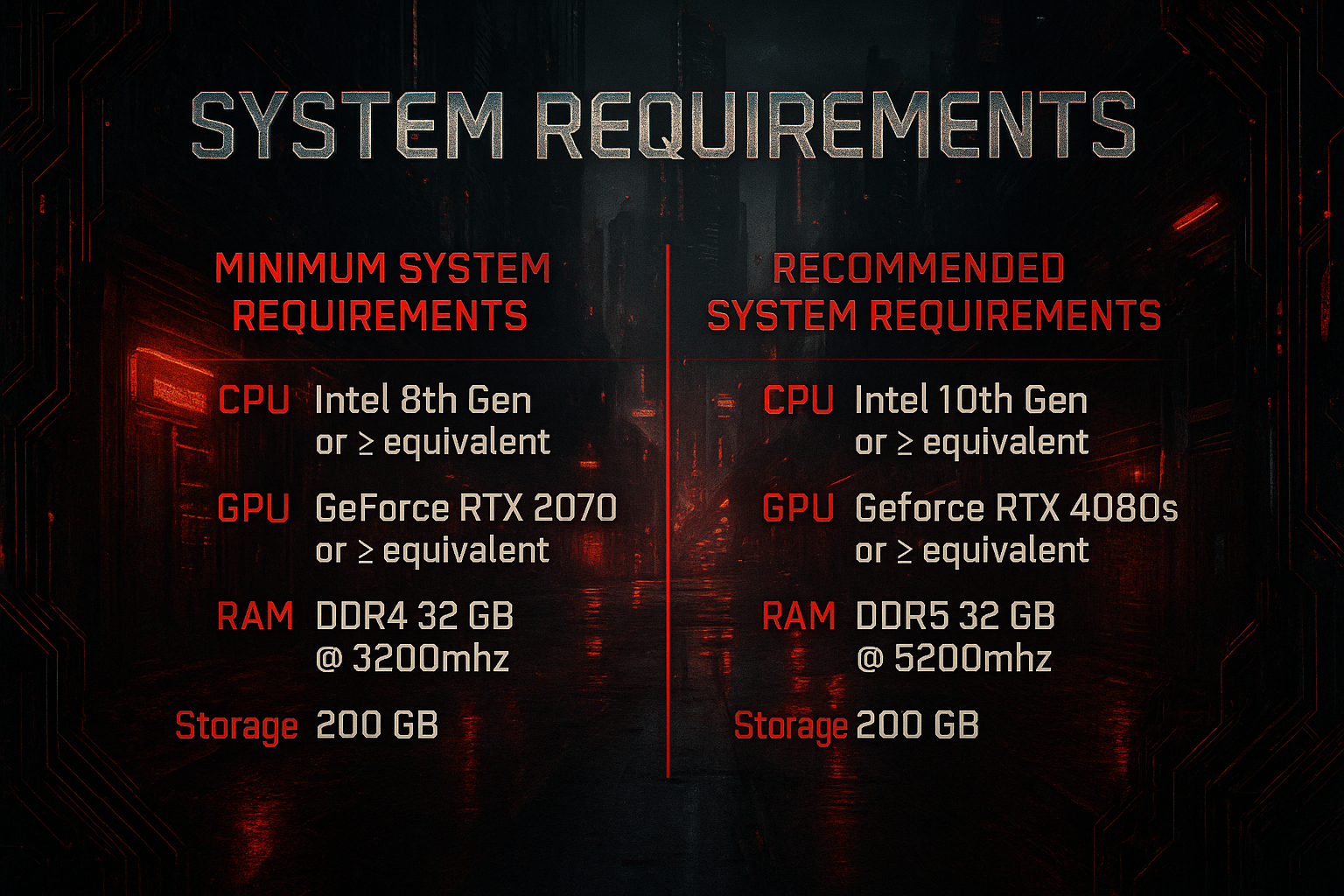
The modlist itself is only ~9.6 GB on disk — the rest is the ~84.6 GB vanilla game it sits on top of, for ~105 GB total. Have at least 160 GB free on the SSD before you start; the install needs working room while Wabbajack downloads and extracts.
The Easy Way: Run the Setup Tool
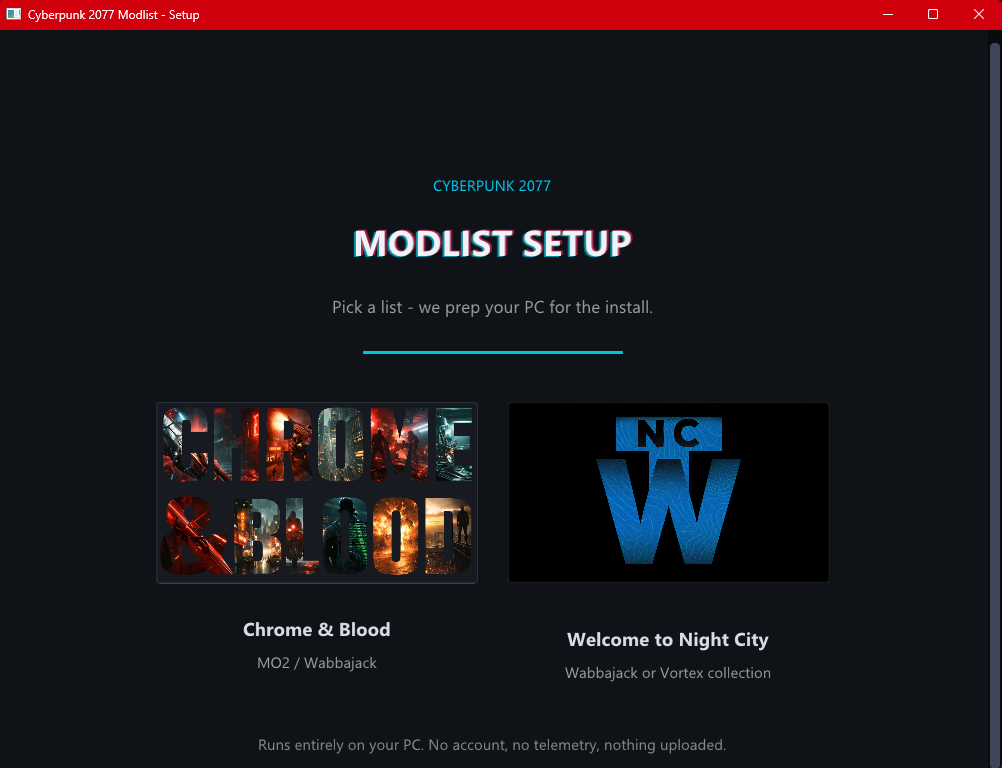
Everything in the preinstallation list is handled by one small Windows tool. Download it, run it, pick Chrome & Blood, and it sorts out the runtimes, the Windows and Steam tweaks, the Wabbajack download, and cleaning the game back to vanilla. Anything only you can do, it walks you through with links. The manual steps further down are only there if you'd rather not run it.
- Download, extract, and run
CyberpunkModlistSetup.exeThe button above downloads the setup tool ZIP directly. Extract it anywhere, then run the tool. Windows asks for administrator rights once on startup, because the runtime installers need them.
- Pick Chrome & Blood, then Mod Organizer 2
The screen reads top to bottom from there.
- Hit "Run all automatic steps"
Runtimes, Windows long paths, the Steam update setting, the Wabbajack download, and an optional clean-up of old mod files. All at once, or one at a time.
- Clear the checks
It reads your system and the game and flags anything that needs your attention, with a button to get you there.
- Do your part
The handful of steps only you can do, each with a link. Click a step's circle to mark it done as you go.
- Install the list and launch
Send Chrome & Blood to Wabbajack, set your install folder, and hit Install. When it finishes, launch through
ModOrganizer.exeand head to First Launch below. Never start Cyberpunk from Steam or a desktop shortcut.
It's not a virus. Windows might tell you it is anyway. The tool isn't code-signed (a signing certificate costs money I'd rather put toward the list), and it does exactly the things antivirus is trained to distrust: it downloads installers, changes a couple of Windows settings, and clears out folders. An unsigned app doing all of that is enough for Windows SmartScreen to show an "Unknown publisher" warning, and every so often Defender flags it on a hunch. That's a false alarm, not a real detection.
Why you can trust it: every line of the source is public on GitHub. Read it, or build the exe yourself if you'd rather not run mine. Everything it downloads comes straight from Microsoft, the official Wabbajack GitHub, and the official Vortex GitHub, and each one is signature-checked before it runs. Nothing is uploaded, there's no account and no telemetry, and the clean-up step moves files to a reversible backup instead of deleting them. Only ever download the tool from the GitHub release linked above.
To get past SmartScreen: click More info, then Run anyway. If Defender quarantines it, restore it from the notification or add an exclusion. Want to scan it yourself first? Go for it. Just know an unsigned tool like this often trips a flag or two on a scan, which is that same false alarm, not real malware.
And if you're still convinced it's a virus but you're about to install my 12 GB modlist right afterward anyway... that's a pretty strange place to draw the line.
Prefer to Do It Yourself?
Everything the tool automates, by hand, all the way to launch. You only need this if you skipped the tool, so don't do both. Instructions assume the Steam version of the game.
Show the full manual setup
- Perform a clean install of Cyberpunk 2077
No mods, no leftover files, fully updated to the latest official patch (not a beta branch). Install it outside of
Program Files. - Keep cloud sync away from the install
Do not put the game, the modlist, or the downloads folder anywhere OneDrive, Dropbox, or any other sync service touches. Synced folders lock files mid-install and break MO2's virtual file system.
- Install the Visual C++ Redistributables (All-in-One)
Extract and run
install_all.bat. - Disable Steam auto-updates
- Right-click Cyberpunk 2077 in your Steam Library → Properties
- Go to the Updates tab
- Set Automatic Updates to "Only update this game when I launch it"
- From now on, only launch the game through Mod Organizer 2
- Make sure all official DLC is installed
- Install REDmod
It's a free DLC on Steam — Steam must show both Cyberpunk 2077: REDmod and Cyberpunk 2077: Phantom Liberty as installed.
- Update your GPU drivers
- Install the .NET Runtime (latest version)
- Install the DirectX End-User Runtime
Then install the list with Wabbajack:
- Download Wabbajack
Put it somewhere safe — not inside your Cyberpunk folder and not in a protected location like Program Files. Example:
D:\Wabbajack - Open Browse Modlists, filter by Cyberpunk 2077, and find Chrome & Blood
Tick Featured, or search the name if it doesn't show right away. You can also reach it from the Nexus Collection or Nexus page — both route into Wabbajack.
- Set your paths
- Installation:
D:\Wabbajack\Chrome & Blood - Downloads:
D:\Wabbajack\downloads— a shared downloads folder lets different Wabbajack lists reuse the same archives - Both folders need to be on the same drive as your Cyberpunk install, and not inside the game directory or Program Files
- Installation:
- Hit Install
Let Wabbajack run — don't interrupt it; it can take a while depending on your connection and hardware. Running third-party antivirus? Set your exclusions first (see Antivirus below).
- Open the install folder and launch
ModOrganizer.exeHead to First Launch below.
Antivirus
Third-party antivirus breaks this list. Software like BitDefender, Norton, and Webroot fights MO2's virtual file system and can quarantine files mid-install. Add your install and downloads folders to its exclusions before you install, or remove it entirely for this list. Windows Defender with smart browsing habits is enough, and the setup tool flags this for you.
How to add a Windows Defender exclusion
- Open Windows Security
- Go to Virus & threat protection
- Click Manage settings
- Scroll to Exclusions → Add or remove exclusions
- Add your Chrome & Blood installation folder
- (Optional) Also exclude
ModOrganizer.exeandCyberpunk2077.exe
First Launch
- Pick your profile — Immersive or Standard — in MO2, then hit Run. Never launch Cyberpunk directly through Steam or a desktop shortcut.
- Press Numpad 0 to open Unified Mod Settings. Its categories are organized by the part of the game you want to change. Adding, removing, or reordering mods is different and falls under Rule 11.
- Press H to open the Character menu, then select Database. The first category contains the Chrome & Blood Player Guide, including current controls and profile-specific instructions.
- Performance not ideal? The FAQ's Graphics & Performance section has the full step-by-step setup.
Updating the Modlist
- Open Wabbajack and find Chrome & Blood
The gallery listing always points to the latest version — there's no separate file to download.
- Point it at the same install folder you used before
Use the exact same installation path. Wabbajack overwrites the old version with the current one — nothing to tick, no boxes to check.
- Install, then launch through Mod Organizer 2
Back up first: saves and personal settings live in your profile folder. The FAQ covers exactly what to back up before an update, and how to keep your own added mods safe with the [NoDelete] tag.